Using ShowMe to Develop Student Created Math Tutorials

This guest post is written by Kelly Wroblewski, a High School Math Teacher in Austin, TX. She and her coworker and fellow teacher William Kiker assigned a fantastic class project to their students, resulting an an entire website of support materials for their Algebra 2 and Pre-Calculus classes. Check out the website here. 

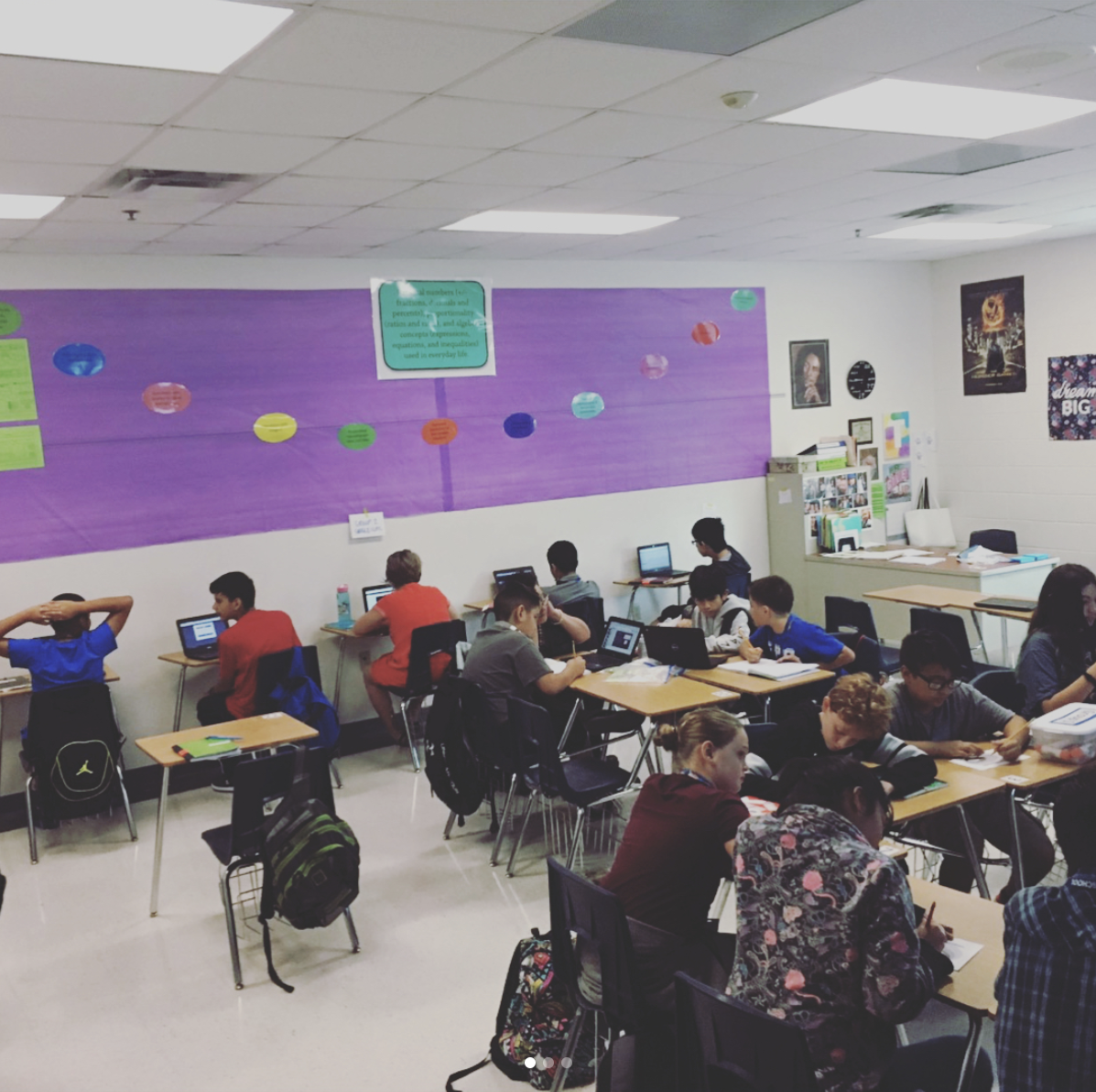
This past semester, William Kiker and I (Kelly Wroblewski) applied to be part of a pilot iPad program at our high school.  As members of a small project based  learning community within Austin High School in Austin, TX, we latched on to the ShowMe app pretty quickly.  Some of our students use the Khan Academy website as a resource to supplement in-class instruction, but some topics were either unavailable or were not tailored to our courses or textbooks.  Mr. Kiker and I determined we could use the ShowMe app to create videos similar to those found on the Khan Academy website, but specific to our courses at Austin High. Rather than having students hear their teachers yet again in video, we decided to design a project where the students create the instructional materials.  Since we were implementing this project towards the end of the school year, it provided the opportunity for students to review for the upcoming state exam or reflect upon a specific topic from the school year, depending on the needs for that course.

This project required that students create a short instructional video supplemented by a video guide document to lead the viewer through the content and a quiz to assess the viewer’s knowledge over the skills that were taught in the video.  The topics ranged widely from specific objectives from the state exam to specific Algebra 2 and Pre-Calculus concepts.  Though the concepts were quite specific, it was interesting to observe the unique ways in which the students decided to present the topics in their videos.  Using ShowMe as a medium allowed for creativity and individuality while still guiding students to accomplish the overarching video creation task.  What we have compiled as a result of student submissions is our significantly more customized AHS Academy website where students can go for Austin High specific assistance with their math courses.

Overall, this project was a great learning experience for all involved, especially the teachers.  Mr. Kiker and I will be implementing version three of this project next school year in the hopes of expanding and improving upon the current content.  For more information on this topic, or to provide feedback regarding the website, please email me at kwroblew@austinisd.org or Mr. Kiker at william.kiker@austinisd.org.

A Great Tool for Graphing

WARNING: Math-related content! Handle with care!..

My math teacher in high school was really good at drawing figures and graphs. He could draw a circle almost perfectly with only one move. Though my drawing is good, I am not as good as him. Especially, I have a hard time when it comes to drawing accurate graphs in the class. By the time I started suspecting if a ruler might help, I discovered this website; GraphSketch.com.

It is extremely handy if you teach how to graph functions. You can use this website to draw your graphs accurately for hard-copy worksheets, or to draw your graphs while teaching, or to have images of the graphs for your ShowMe’s.

Introduction first:

When you go to the website, what you see is a coordinate plane. If you scroll down, you see the parameters. Here, you can type up to 6 functions, each graphed with a different color, adjust the size of the coordinate plane, display the numbers on the axes according to your choice, adjust the thickness of the graph, and even the size of the image!.. I can write a long paragraph for each setting, but it is always the best when you explore yourself.

At the bottom of the page, you may see the table for assistance on how to write certain type of functions. This is really helpful as the website doesn’t have a tool to type mathematical symbols, like the powers or the square roots, etc.

And the best part is, you can either save your graph, or get a “permanent link”. To save your graph as an image, click on the link just under the coordinate plane, and then save the image as usual. To get a permanent link, just right click on the “permanent link to this graph page” and click on “copy link location”. Then you can share the graph by sending this link via e-mail or pasting it to your website, etc.

I really enjoyed using Graphsketch in teaching graphs of radical functions. I no longer draw graphs with color pens on the board, which actually are ‘sketches’ rather than accurate graphs. I can graph several functions in Graphsketch, but “three is a crowd” in my manually drawn graphs. Moreover, I save time; typing the function is all that I have to do. And here is how I used this amazing yet simple tool in my ShowMe. You can compare my manually drawn graphs to the ones drawn with Graphsketch.

My students also liked the website. Actually, it is a good way for them to discover the nature of the graphs of functions. They can start with a parent function ( y = √x, in my case), and then insert numbers and four operations to realize the graphing process, understand the transformations, or compare the graphs of different functions, etc.

If I was asked to improve it, I would add “percentage” option for changing the size of the image. This is a good option if you want to change the size but keep the scale of width and height of the image. Also, I’d like it to draw graphs of implicit functions, as well, but I think this option is way too harder to add than the percentage option.

For the ones who dare to read this article until here, feel the relief; it is over. Thanks for your patience.

How-To: Email ShowMes directly to Evernote

Evernote is a really fantastic organization tool for both teachers and students.  The notebooks you create can be accessed on your computer, iPhone and iPad. But did you know you can also email your ShowMes directly from you iPad to your notebooks in Evernote? With this strategy students no longer have to worry about losing schoolwork. Teachers can also create e-portfolios for each student and students can email you directly with their name #hashtagged! This can be a powerful and efficient way to have students submit ShowMes (or other work). Here’s how to do it.

Evernote provides an email for every account. You can find it by logging in and clicking to human outline on the top right corner of the page. Here you will see a “Settings” option. When you click that it will take you to a page that lists information about your account, including your evernote email. Use this email address to send ShowMes directly into your account. Emailed notes will go directly into your default notebook.

You can direct your ShowMe to a particular notebook by simply including key tags in the subject line of your email. (Use the guide above from Evernote to help.) Happy organizing!


ShowMe and Google Forms

Last week, I wrote on this blog about the advantages of using Google Forms with your ShowMe videos. Well, I must say that Google Forms is a powerful intuitive tool for the classroom. Even if you are not in a 1:1 school (with iPads or computers), Google Forms presents an opportunity to get real time information from students not delayed through exit slips or problem sets. The common question that I think that lingers is how are the students responding if you are not using iPads or computers; the answer is smartphones (and it doesn’t matter the operating system or carrier of the phone.) If you have a class website, links can be set up so that students can respond to questions or you can send students emails with the link of the form so that students can respond at the end of the class period or complete questions for homework while watching their ShowMe or simply completing their reading of various materials.

The reason that I mentioned these applications two weeks in a row, even though most people may already be using Google Forms, is that it is important that teachers receive data (which is an important part of the Common Core) and use it to meet the learning needs of their students. On a recent episode of 60 minutes, Kahn Academy was highlighted for the use of formative data to help teachers create a customized learning experience for each student, but what was at the heart of Kahn Academy was a program that allowed teachers to see precisely where the students were in their learning and the teacher could then direct the classroom based on the needs of students instead of creating a one size fits all curriculum approach. Why wait for Kahn, when the program already exists with Google Forms, especially since cash-strapped districts are not going to purchase expensive software, teachers need to plan what they want their students to know, understand and be able to do with the content of their ShowMe or their classroom and develop a form to help collect the data so that every student learns. Then with the data tailor lessons that meet the needs of every student in the classroom and the best part is the fact that it does not add any more planning time. By creating ShowMe lessons and assessing students knowledge with Google Forms, you are creating a truly enriching experience that benefits every student in the classroom.

How-to: Embed your ShowMe into a Prezi presentation!

This How-to comes to us from Peg Hartwig of Marshfield, WI. One of her students was asked to make a STEM project and discovered the ability to embed a ShowMe into a Prezi presentation. It looks really awesome and she has kindly shared instructions so that you call can make your own.  Make sure to watch the original presentation (and inspiration for this post) Distance of Celestial Bodies in Space.

  1. Upload your ShowMe to your account from your iPad
  2. Log into the ShowMe website and navigate to your name in the top right corner. Hover over it to make a menu appear
  3. Click on “Edit ShowMes” and select the ShowMe you wish to download by clicking “download”. The file will save to your computer as an mp4.
  4. Next, open Prezi and go to the tool wheel to insert a file. Select the ShowMe from your downloads folder and click OK/Upload. The video will appear in your Prezi!
  5. You’re all set to go!
Peg also kindly created this ShowMe tutorial to help you follow along!

Great example of using ShowMe in Special Education!

I came across this great YouTube interview + tutorial a few weeks ago of how to use ShowMe in a special education. Greg Sumner + Deb at Bridgewater Elementary School in Minnesota have been using ShowMe with students to help them self-regulate–excellent idea!

I love that so many of our community members have found a variety of ways to use ShowMe. When the company was created, our mission statement was pretty simple: “To have a positive impact on education and change the way people learn”. Thankfully we built our tools to be extremely flexible so everyone could adapt it for his or her needs!

Check out the video below, and let us know if it helps!

Related Posts Plugin for WordPress, Blogger...